
Setting up your organization
The three onboarding moments — Set up, Plan, Go — and what happens at each.
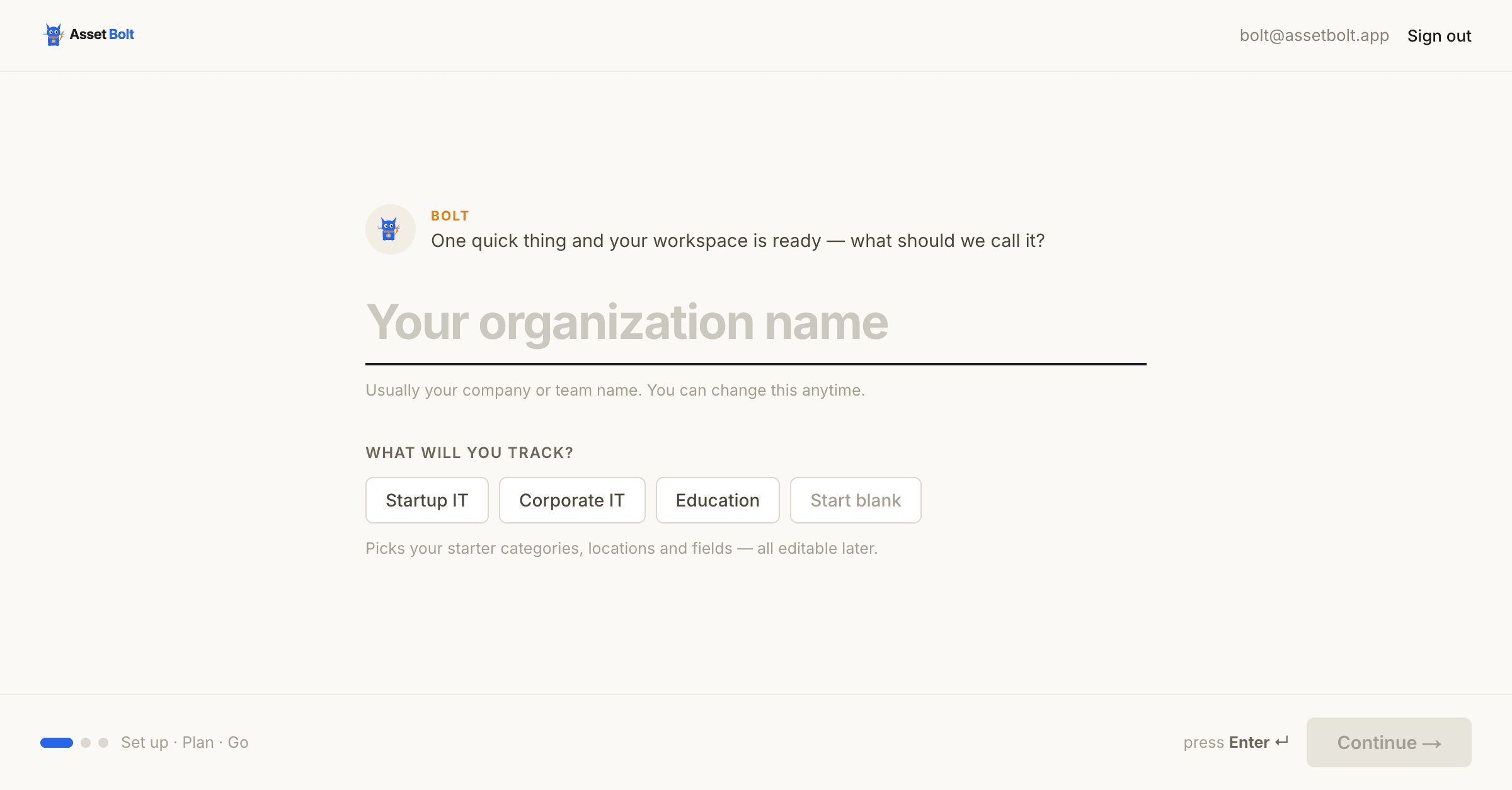
New AssetBolt accounts go through three short moments: Set up, Plan, and Go.
Set up
Name your organization. This is the workspace everything else lives inside — assets, people, settings, and billing all belong to it.
If you already belong to an organization, choose Select it instead to jump to the organization picker rather than creating a second one.
Plan
Choose a plan and enter payment details through Stripe Checkout.
Every new organization starts a 14-day free trial. A card is required up front, but nothing is charged today — the checkout total shows $0.00, and billing begins when the trial ends.
If you're reactivating an organization that has already onboarded, you'll skip straight into the app instead.
See Plans, pricing, and how assets are counted for what each tier includes.
Go
You're in. AssetBolt offers four first moves:
- Add your first asset — create a device by hand.
- Import from CSV — bring in an existing inventory.
- Connect your MDM — pull devices in automatically from Kandji or Jamf.
- Invite your team — add colleagues to the organization.
You can also skip straight to the dashboard. Nothing here is permanent; you can do any of it later.
Switching organizations
If you belong to more than one organization, the organization picker lets you choose which to enter, or create a new one. If you belong to none, AssetBolt sends you to onboarding automatically.
What to do next
The fastest path to something useful is to get your devices in — by CSV import or an MDM connection — and then add the people you'll assign them to. Locations and categories can wait until you need them.